

Install the Agent as a Service on Windows
Once communication between the agent and the CertGuardian platform has been verified, the agent can be installed as a Windows service.
Requirements
Before proceeding, ensure that the server meets the following requirements:
- Windows Server 2012 or later.
- 64-bit architecture (x64).
- Administrative privileges.
Install the Service
Navigate to the directory where the agent is located and run:
powershell
certguardian-agent.exe installConfigure the Service Account
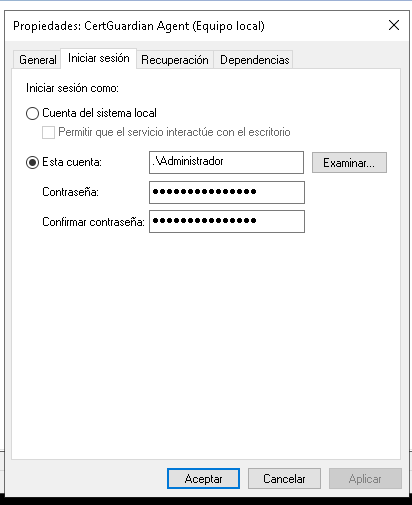
The CertGuardian Agent service must run using an account with administrative privileges.
To configure the service account:
- Open
services.msc. - Locate the CertGuardian Agent service.
- Open the service properties.
- Go to the Log On tab.
- Select This account.
- Enter an account with administrative privileges.
- Apply the changes and start the service.
Verify Agent Activity
Once the service has been started, you can verify its activity from the CertGuardian platform by checking:
- The date of the last heartbeat.
- The agent status.
- Assigned tasks.
- Task execution results.
TIP
It is recommended to verify communication with the CertGuardian platform before installing the agent as a service.