

Windows IIS
The Windows IIS Hook connects to the IIS server using the WinRM protocol using an Ansible script.
Follow the following steps to enable the WinRM service:
Enable the WinRM service
Run the following the command in the IIS server:
winrm quickconfigIf it ask you for confirmation (Y/N), type Y and press enter. This will start the service and create the basic firewall exception.
Generate the a self signed certificate for the WinRM service:
New-SelfSignedCertificate -Subject "CN=your-iis-server-ip" -CertStoreLocation "Cert:\LocalMachine\My" -NotAfter (Get-Date).AddYears(5)
your-iis-server-ipis the IP that CertGuardian will use to connect to the IIS server, so it needs to be accessible from the CertGuardian server.
After generating the certificate write down the certificate thumbprint. 
You can also list the certificates with:
Get-ChildItem Cert:\LocalMachine\My |
    Where-Object {$_.HasPrivateKey} |
    Select Subject, Thumbprint, NotAfter |
    Sort-Object NotAfter
Start the WinRM service with:
winrm create 'winrm/config/Listener?Address=*+Transport=HTTPS' '@{Hostname="your-iis-server-ip";CertificateThumbprint="your-certificate-thumbprint"}'This will start the service in the port 5986.
Important: You may need to allow the 5986 port to the CertGuardian IP on your firewall depending on your configuration.
Configure the Windows Firewall (Optional)
To restrict access and only allow connection from the CertGuardian server, follow the following steps: Open the Windows Firewall pressing Windows + R and type wf.msc and press Enter: 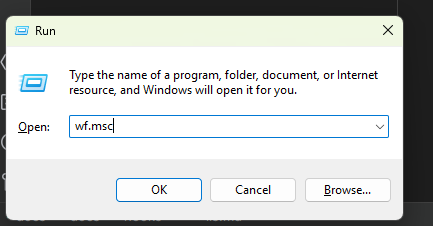
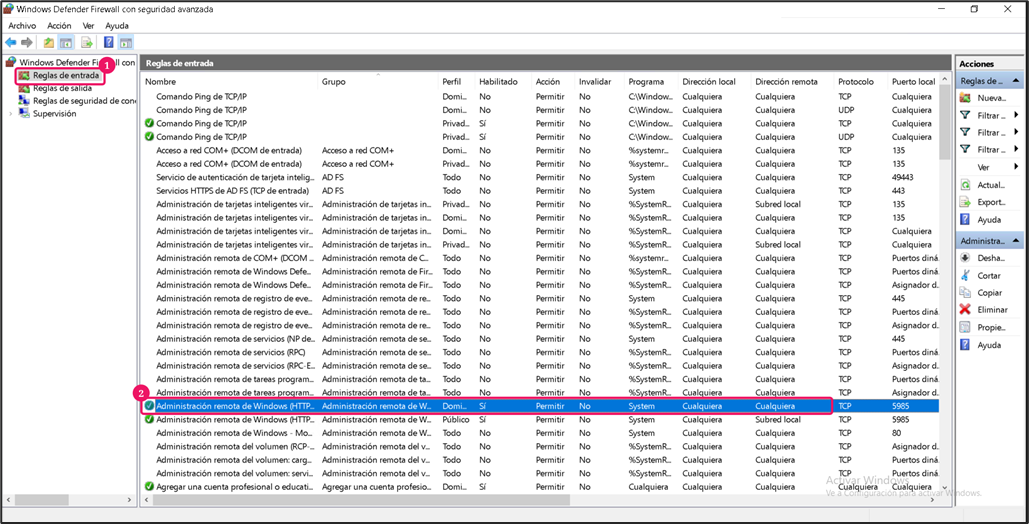
Click "Inbound rules" (1)
Find and edit the rule "Windows Remote Management (HTTP-In)" (2)
Go to "Advanced options" (1)
In the "Profiles" section check
Domain,PrivateandPublic(2),In the
Edge traversalsection selectBlock edge traversal(3)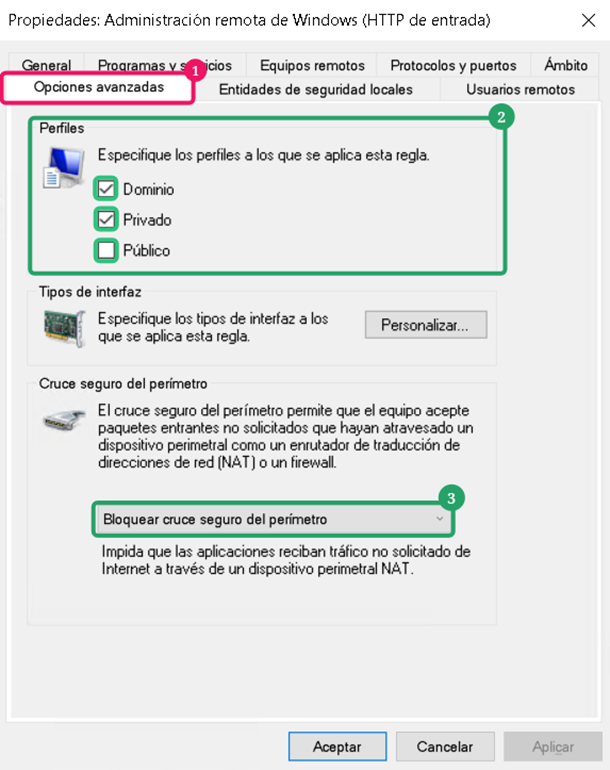
Go to the "Scope" tab (1).
In the "Remote IP address" select the option "These IP addresses" (2).
Click in "Add..." (3) and type the IP address of CertGuardian.
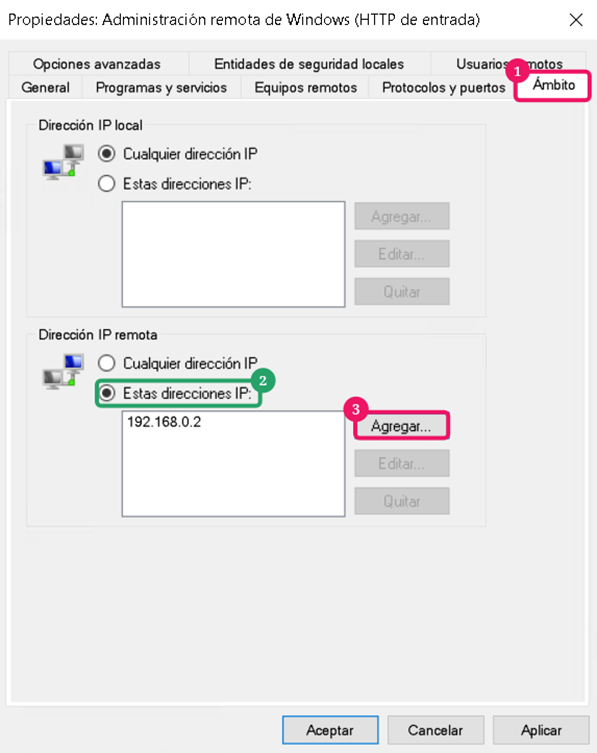
Save changes: Press Apply to apply the new rules.
Connection credentials
WinRM server requires a user and password to connect. You will need to create a new user or use an existing one for CertGuardian to use.
The user must be of Adminsitrator level
Test Connection
From the CertGuardian server you can quickly test if the port is visible to the server with a telnet command:
curl -v telnet://your-iis-server-ip:5986If telnet allows you to connect that means that the two machines can communicate.
Next step is testing the connection WinRM. Go to CertGuardian -> Installation targets -> New 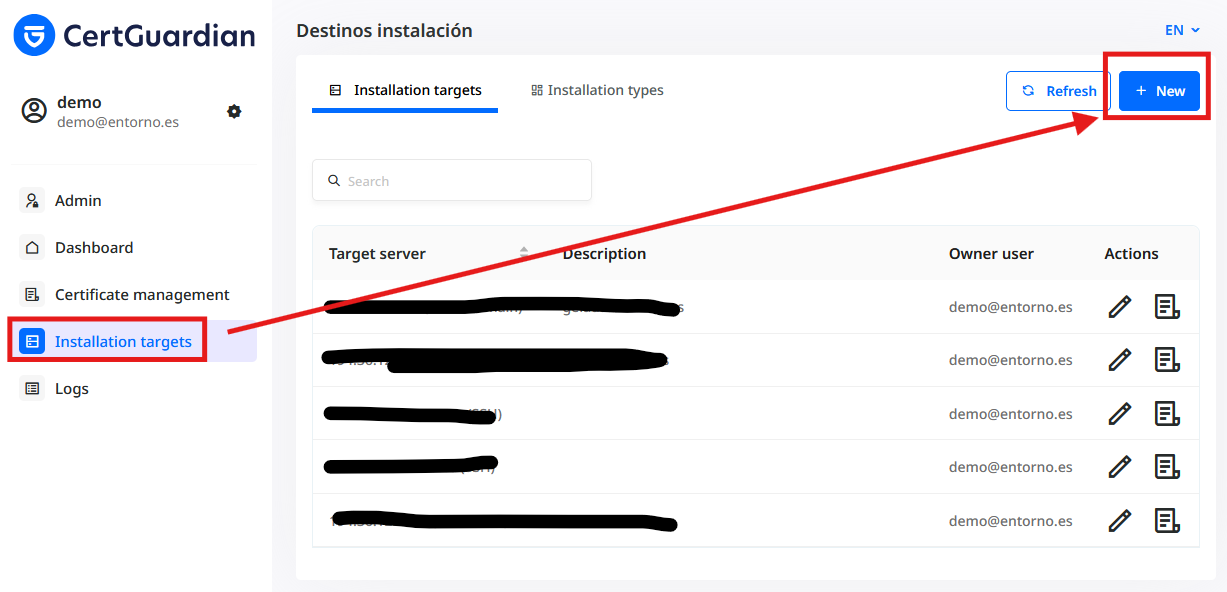
Choose the IIS Hook and fill the form: 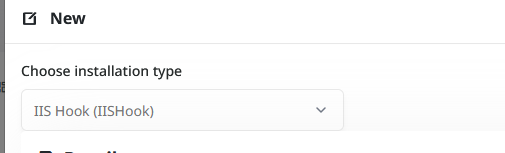
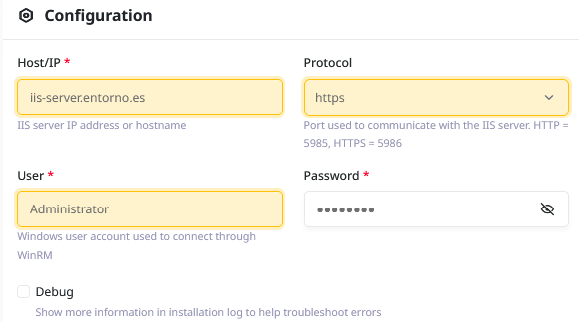 After filling the form click "Connection test" to verify that the connection is working:
Allow users from Active Directory
If the user that needs to connect to the Windows Server is part of an Active Directory domain you need to add the users to the Local Administrador group with: Si el usuario está en un dominio de Active Directory, hay que añadirlo al grupo local de Administradores con:
Add-LocalGroupMember -Group Administrators -Member "DOMAIN\user"Check if the user has been succesfully added to the Administrators group with: Get-LocalGroupMember Administrators