

SSH
CertGuardian can connect via SSH to a remote server to update the certificate. The hook requires the following parameters:
Host/IP: IP address or domain name of the remote server.User: Username for SSH authentication.SSH Port: SSH connection port (default 22).Private key: Path to the private key file on the remote server.Certificate: Path to the public key file on the remote server.Intermediate certificate (chain): Path to the certificate chain file on the remote server (optional).Certificate + intermediate (fullchain): Path to the full certificate chain file on the remote server (optional).Reload command: Command to restart the web server (for example: systemctl reload nginx).
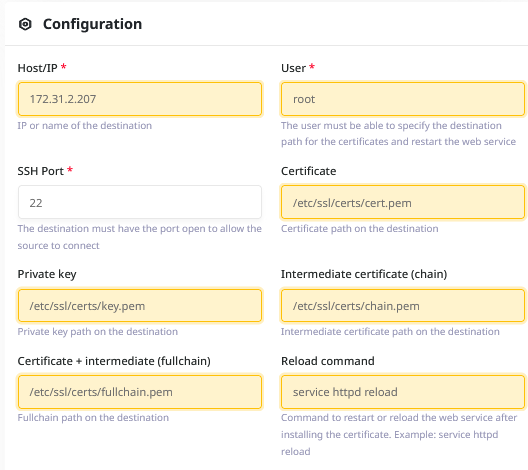
To allow CertGuardian to connect to the remote server, you need to add the public key to the authorized keys file on the remote server. Extract the CertGuardian SSH public key with:
docker compose exec certguardian cat /var/www/certguardian/ssh-keys/id_rsa.pubAnd, on the host machine, add the output of the previous command to the authorized keys file on the remote server. The authorized_keys file is located in the user's home directory*.
echo "ssh-rsa AAAAB3Nz......." >> ~/.ssh/authorized_keysOr edit the file manually.
vi ~/.ssh/authorized_keysINFO
The user needs write permissions in the destination directory and permission to reload the service.
Enable root in restricted SSH environments
In some environments, SSH access for the root user is disabled for security reasons. If you need CertGuardian to be able to connect using the root user, you can allow access only from a specific IP to maintain a higher level of security.
Edit the SSH configuration
Open the SSH server configuration file:
vi /etc/ssh/sshd_configLook for the line:
PermitRootLogin noJust above it, add the following configuration, replacing <IP_OF_CERTGUARDIAN> with the IP provided by CertGuardian
Match Address <IP_DE_CERTGUARDIAN>
    PermitRootLogin yes
Restart the SSH service
Apply the changes by restarting the service:
systemctl restart sshdVerify the connection
Check that the root user can connect correctly from CertGuardian server (it doesn't need to be inside the CertGuardian Docker container):
ssh root@<IP_DEL_SERVIDOR>