

Deployment
This section covers the installation and centralized maintenance of the CertGuardian server using Docker containers. Here you'll find the system requirements, database configuration, and orchestration needed to deploy the Backoffice and Backend platforms.
Folder Preparation
Log in to our Docker image repository:
docker login gitea.entorno.es:3000Clone the repository:
git clone https://gitea.entorno.es:3000/CertGuardian/certguardian-docker-imagesEnter the repository folder:
cd certguardian-docker-imagesSubdomain Preparation
Prepare 3 subdomains pointing to the server's IP:
- backoffice.my-domain.com
- backend.my-domain.com
- reverb.my-domain.com
Backoffice Configuration (leave as default)
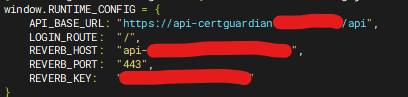
cp backoffice/config.js.example backoffice/config.jsvi backoffice/config.jsFill in the necessary configuration values in the config.js file:
API_BASE_URL: Enter the backend URL including https and add "/api" at the end. If the backend subdomain is: backend.my-domain.com, then the configuration would be: "https://backend.my-domain.com/api",LOGIN_ROUTE: (leave as default)REVERB_HOST: Enter the reverb.my-domain.com subdomain, without any protocol.REVERB_PORT: (leave as default)REVERB_KEY: Generate a key withopenssl rand -hex 16, save it for later
Backend and database Configuration
cp docker-compose.yml.example docker-compose.ymlvi docker-compose.ymlFill in these variables in the environment section of the certguardian service in docker-compose:
      - BACKOFFICE_URL="https://backoffice.my-domain.com" // Backoffice URL
      - CERTBOT_MAIL="mail@my-domain.com" // Certbot notification email https://community.letsencrypt.org/t/what-is-the-email-used-for-when-i-run-certbot-at-the-first-time/119911/2
      - CERTBOT_MAIL_PRIORITY=1
      - DAYS_EXPIRY_RENEW=5 // Number of days before certificate expiration for certguardian to start renewal
      - DB_USERNAME=root
      - DB_PASSWORD=password // generate one with 'tr -cd [:graph:] < /dev/random | head -c15'
      - APP_KEY=base64:<output of 'openssl rand -base64 32'>  # Prefix the generated value with 'base64:'
      - REVERB_APP_ID=12345
      - REVERB_APP_KEY=xxxxx // Use the REVERB_KEY value you generated earlier
      - REVERB_APP_SECRET=xxxxx_secret // generate it with 'openssl rand -hex 32'
      - MAIL_ADDRESS_FOR_NOTIFICATIONS="mail@my-domain.com" // Email address that will receive application error notifications (issuance errors, certificate installation errors...)
      // Configuration for the email account that will send application emails (email hooks and application error notifications)
      - MAIL_DRIVER=smtp
      - MAIL_MAILER=smtp
      - MAIL_SCHEME=smtp
      - MAIL_HOST=mail.my-domain.com
      - MAIL_PORT=587
      - MAIL_USERNAME=mail@my-domain.com
      - MAIL_PASSWORD="xxxxx"
      - MAIL_FROM_ADDRESS="mail@my-domain.com"
Then, go to the db service and fill the MYSQL_ROOT_PASSWORD in the enviroment section with the value of the previous step.
  db:
    image: mysql:8.0
    container_name: certguardian_db
    restart: unless-stopped
    ports:
        - "3306:3306"
    environment:
      MYSQL_ROOT_PASSWORD: certguardian // <---- here
      MYSQL_DATABASE: certguardian
      MYSQL_ROOT_HOST: '%'
Mail with auth configuration
If the mail address that CertGuardian will use doesn't require authentication, put this in the environment part on docker-compose.yml:
      - MAIL_MAILER=smtp
      - MAIL_HOST=my.smtp.host
      - MAIL_PORT=smtp-port
      - MAIL_DRIVER=null
      - MAIL_SCHEME=null
      - MAIL_USERNAME=null
      - MAIL_PASSWORD=null
      - MAIL_ENCRYPTION=null
      - MAIL_FROM_ADDRESS="sender@domain.es"
      - MAIL_FROM_NAME="${COMPANY_NAME}"
Test email delivery
Run this command (inside the certguardian container) to test the mail delivery is working:
php artisan mail:test destination@addressNGINX Configuration
Create a copy of the nginx configuration file:
cp nginx/conf.d/nginx.conf.example nginx/conf.d/nginx.confAnd replace the subdomains with the ones you created:
sed -i \
-e 's/backend\.dominio\.es/backend.my-domain.com/g' \
-e 's/reverb\.dominio\.es/reverb.my-domain.com/g' \
-e 's/backoffice\.dominio\.es/backoffice.my-domain.com/g' \
nginx/conf.d/nginx.conf
Replace "my-domain.com" with the domain you want to use. And backend, reverb, and backoffice with the subdomains you created.
If the above command doesn't work, you can manually edit the nginx.conf file and replace occurrences of backend.dominio.es, reverb.dominio.es, and backoffice.dominio.es.
vi nginx/conf.d/nginx.confCopy your domain certificates to the nginx/certs folder:
cp /my-certificate-path/fullchain nginx/certs/fullchain.pemcp /my-certificate-path/privkey.pem nginx/certs/privkey.pemStart Containers
Start the containers:
docker compose up -dEnter the backend container:
docker compose exec certguardian bashIf it fails, you can check the container name with
docker ps
Generate SSH Keys
Create the SSH keys for the SSH hook. Inside the container, execute:
ssh-keygen -t rsa -b 4096 -f /var/www/certguardian/ssh-keys/id_rsaGenerate the SSH keys without a passphrase.
Make sure to set the correct permissions once the SSH keys are created:
chown www-data:www-data /var/www/certguardian/ssh-keys/
chown www-data:www-data /var/www/certguardian/ssh-keys/*
chmod 700 /var/www/certguardian/ssh-keys
ls -la /var/www/certguardian/ssh-keys/
Create Administrator User
Head to <my-backoffice-url>/register and fill the form to create an administrator user: 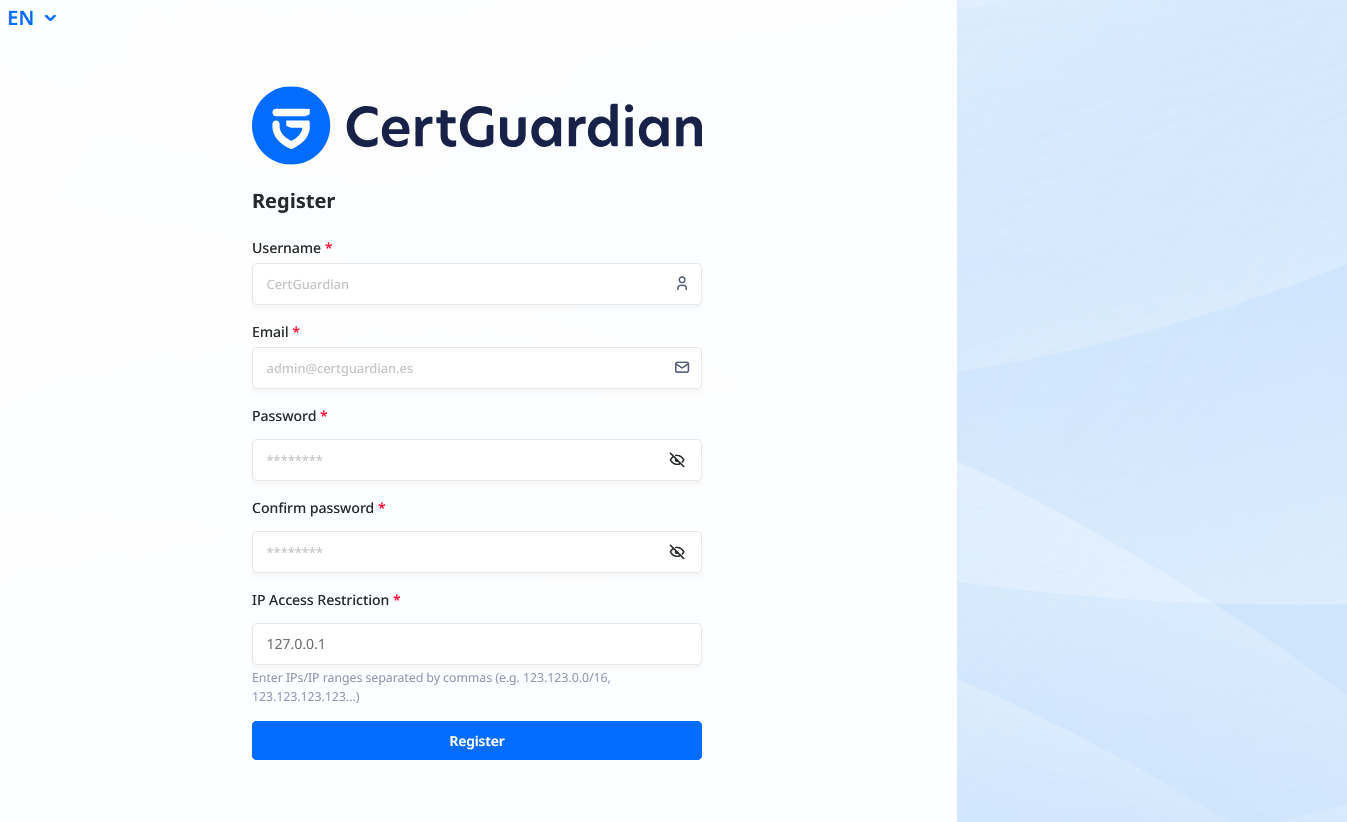
After the user is created, you will be logged in automatically.