Set up BIND9 to allow dynamic DNS updates
Sources:
- https://dev.to/haasal/set-up-your-own-ddns-server-with-bind9-and-go-193o
- https://certbot-dns-rfc2136.readthedocs.io/en/stable/#sample-bind-configuration
This guide explains how to configure BIND to allow dynamic DNS updates using the RFC 2136 protocol. This allows CertGuardian to create or modify DNS records automatically.
rc2136 package installation
Install the bind9-utils package on the BIND server:
apt install -y bind9-utilsGenerate rfc2136 key
On the BIND server generate a TSIG key that will allow communication between CertGuardian and BIND:
tsig-keygen ddnskey >> /secrets/ddnskeyThen, print the content con the generated TSIG key:
cat /secrets/ddnskeySave the key because it will be needed to configure the DNS zone.
Update the BIND zone
Edit the zone file:
vi /etc/bind/named.conf.localAdd the generated TSIG key in the previous step and allow it to update the corresponding zone using allow-update:
key "ddnskey" {
        algorithm hmac-sha256;
        secret "xxxxxxxxxxxxxxxxxxxxx";
};

zone "certguardian.es" {
        type master;
        file "/etc/bind/db.zonad";
        allow-update { key "ddnskey"; };
};
INFO
Replace certguardian.es and the value of secret with the real values of your configuration.
Restart the BIND service to apply the changes:
systemctl restart bind9Test the dynamic DNS update
From other machine, run the command nsupdate and add the generated TSIG key with the -k parameter:
nsupdate -k /secrets/ddnskeyInstall the package
bind9-utilsin the other machine if it is not installed
The command will open an interactive console. Type the following lines, changing the server, zone matching your setup:
server 127.0.0.1
zone certguardian.es
update add test_txt.certguardian.es 180 TXT "test certguardian"
send
If the send runs without errors, the DNS update has been successfully performed. Check the DNS zone to verify that the record has been added with dig:
dig @127.0.0.1 www.certguardian.es AINFO
Replace @127.0.0.1 with the IP address of the DNS server you are using.
CertGuardian configuration
Create DNS Keys
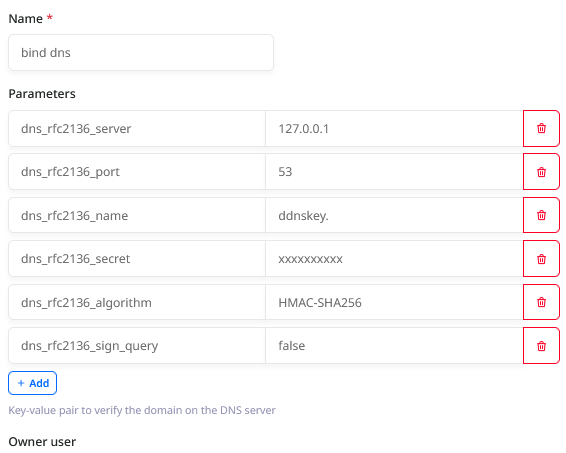
Navigate to Certificate Management -> DNS Keys and click the "New" button to create a new DNS Key
dns_rfc2136_server = 127.0.0.1
dns_rfc2136_port = 53
dns_rfc2136_name = ddnskey.
dns_rfc2136_secret = xxxxxxxxxx
dns_rfc2136_algorithm = HMAC-SHA256
dns_rfc2136_sign_query = false